yinian is a personal assistant. For it to be any real help it has to see your things: mail, calendar, to-dos, notes, files, and what it has remembered about you. The more it sees, the more it behaves like someone who knows how your week is going, and the less like a tool you have to brief from scratch every time.
Say you keep two calendars, Work and Private. The private one has the dentist on Wednesday afternoon, a parent-teacher evening on Friday, and dinner with old classmates at the weekend. You ask yinian to its face, "which evenings am I free this week?" Naturally you want it to read both calendars before it answers. What else is it for.
But yinian does not only work in front of you. Tasks you hand off run in the background, scheduled jobs run by themselves every morning, and rules wake it up when their condition comes true. Suppose you ask it to set up a review meeting with a colleague, and it goes off to trade emails about times. Does that task need to know you are at the dentist on Wednesday afternoon? All it needs to know is that you are not available.
The usual answer is a switch. Connect your mailbox and the assistant sees the whole mailbox; leave it off and it sees nothing. The switch is too coarse, and it only asks half the question. It asks whether the assistant may look. It does not ask on which occasion.
One choice per place
yinian's settings have a page called "What Yinian can see". Each of your places gets a row: a list, a calendar, a notebook, a mailbox or one of its labels, a folder. On the right of each row is one choice, out of four. Calendars get a fifth, Busy only.
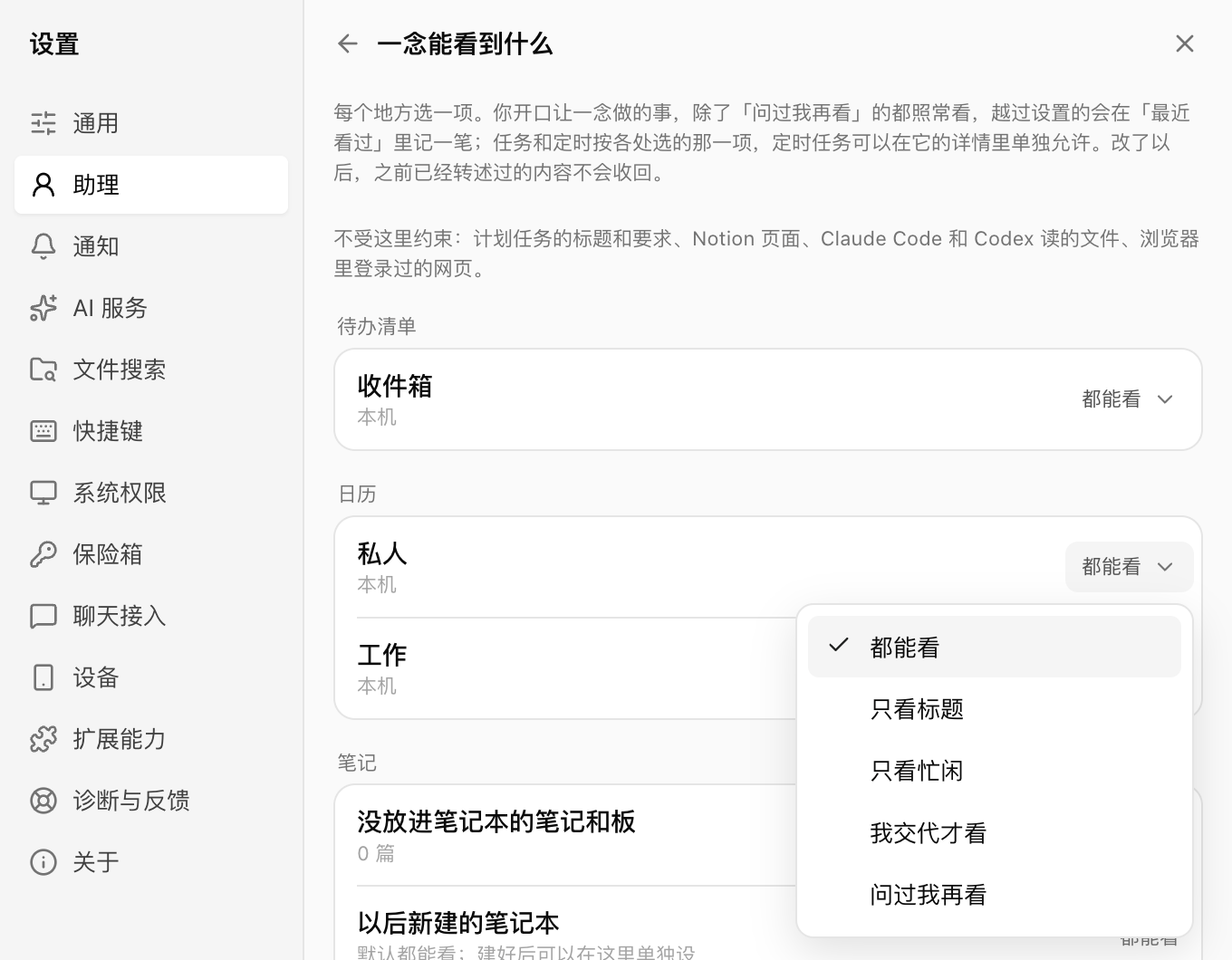
The same option means different things on three kinds of occasion:
| You chose | Something you asked for just now | A task you handed off | Scheduled jobs and rules |
|---|---|---|---|
| Everything | Sees it | Sees it | Sees it |
| Titles only | Sees all of it, and notes that it did | Sees titles, asks you for the rest | Titles only |
| Busy only (calendars) | Sees all of it, and notes that it did | Knows only that the time is taken, asks you for the rest | Knows only that the time is taken |
| Only when I ask | Sees it | Sees nothing, and does not ask | Sees nothing |
| Ask me first | Asks you first | Asks you first | Sees nothing |
The default is Everything, so if you set nothing, yinian works as usual. Tighten a place by changing its row. You can go down to a single item: the calendar stays on Everything while one event on it is set to Ask me first.
Busy only is one step tighter than Titles only: yinian knows the time is taken, and not what for, where, or with whom. Other kinds of data have a matching step. For files it is File names only. Memories are set one by one, and theirs is called Existence only.
Back to the Private calendar. Set it to Busy only, and the task arranging your meeting knows Wednesday afternoon is out and steers around it. It will not put the reason in an email to your colleague either, because it does not have the reason. When you ask about your week yourself, it reads every event in full as before, and leaves a line under "Recently seen" so you can check afterwards.
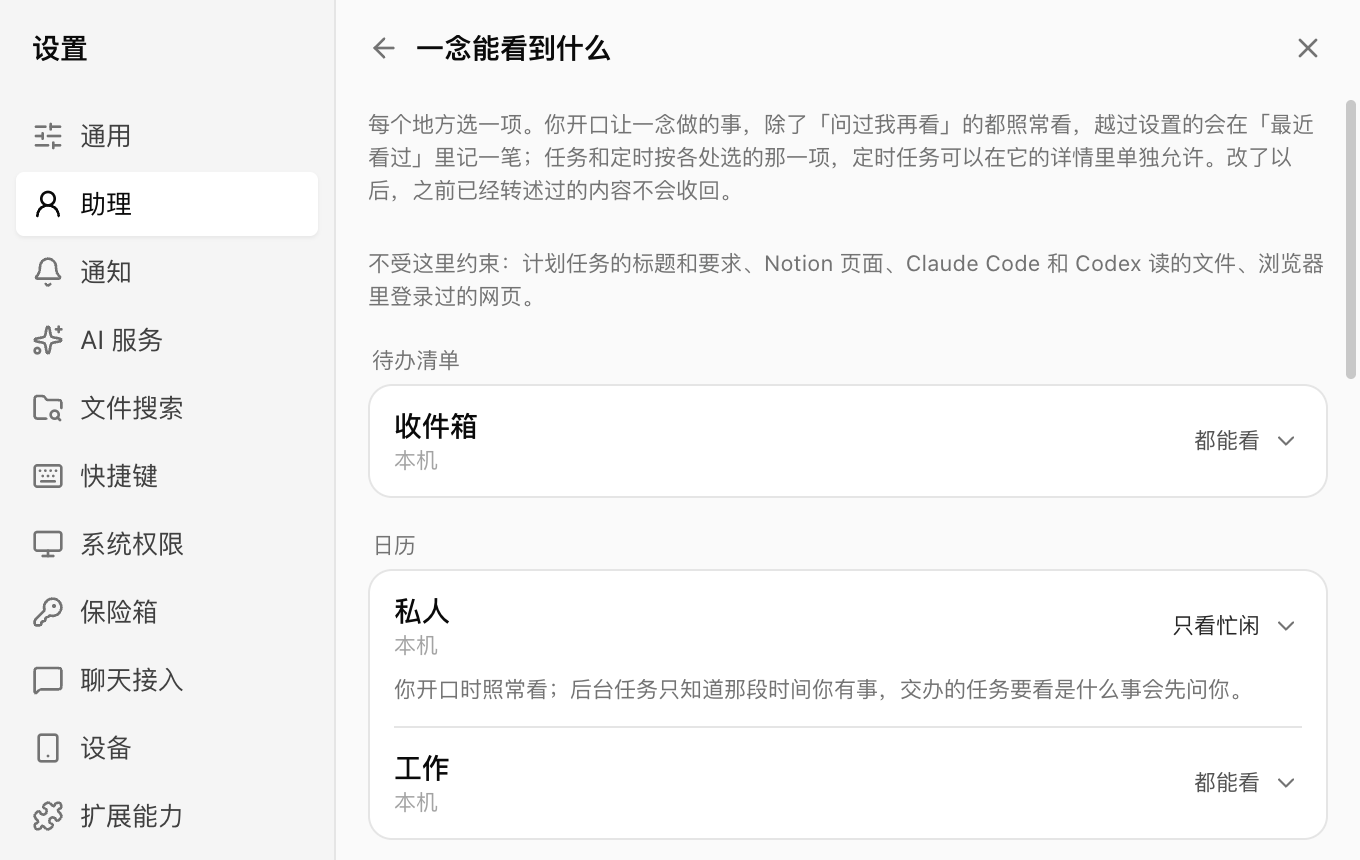
The same content, three occasions
The three columns are the part of this page that matters most. Whether one event can be read in full depends on who asked for the reading this time, and on whether you can be asked before it happens.
               An event on the Private calendar
                            │
          ┌─────────────────┼─────────────────┐
          ▼                 ▼                 ▼
   Something you       A task you        Scheduled jobs
  asked for just now    handed off         and rules
   you are right     you are away but     there is nobody
       there          can be reached         to ask
Something you asked for just now means a turn you spoke yourself, on the computer, on the phone, or in the private chat bound to yinian. The words are yours and the result comes straight back to you, so apart from places set to Ask me first, it reads as usual. A group chat does not count, even when the person mentioning yinian is you. Other people are reading along, and it ought to keep that in mind on your behalf.
A handed-off task is something you said once and walked away from. When it meets a limit it can stop and ask you. The card shows up on the computer and the phone at once, and you can answer on either.
Scheduled jobs and rules were set up in advance, and when they run there is nobody to ask, so they see only what the option gives without asking. If you do want one scheduled job to see the Private calendar, for instance so the morning briefing can lay both calendars side by side, you can allow it in that job's details. The permission is for that one job, and it lapses the day you change what the job is asked to do.
Only when I ask and Ask me first look alike. The difference is in handed-off tasks. Under the first, the task sees nothing and does not bother you. Under the second, the task stops and waits for your nod. Pick the first for things you do not want to be asked about, and the second for things you want to hear about every time.
What it says when it cannot see
Keeping content back is not the hard part. The hard part is how yinian behaves once something has been kept back. There are three easy wrong turns: make up the content it cannot see, say there is no such thing, or find another route and read it anyway. None of the three is allowed. I want it to act like a dependable colleague: finish what it can, then tell you plainly that some items were not read, and why.
When you are there, or can be reached, it shows a card. Say you handed off a task to put next week's events from both calendars into one table. When it gets to the Private calendar it stops and asks:
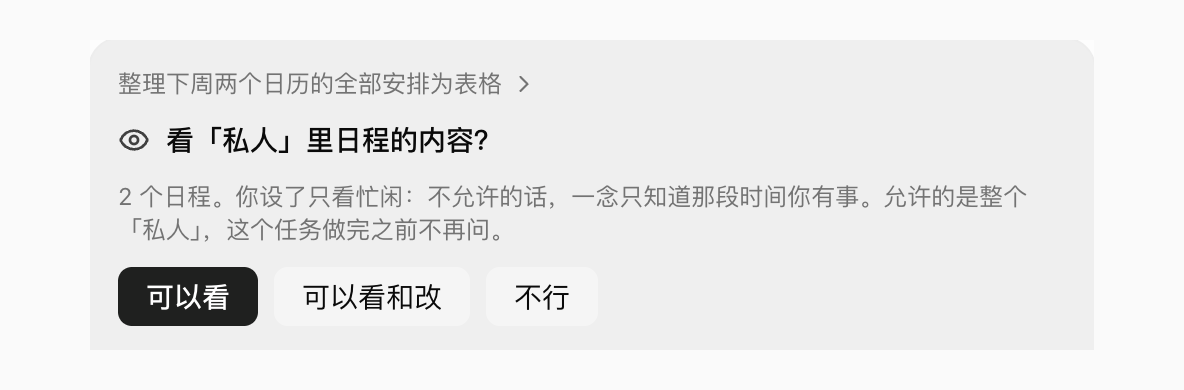
The screenshots are from yinian's real interface, in Chinese. The calendars and events are sample data made for this post.
The card has three answers. "Allow viewing" covers reading only. "Allow viewing and changes" also means ordinary changes in this place are not asked about one by one afterwards. "No" means nothing more of this kind is asked about for this job, and it finishes what it can with only the busy times.
How much your yes covers, and for how long, is written in the card's last sentence. The one above says it covers the whole Private calendar, until this task is done. Your yes ends when you send your next message or when the task finishes, and after an hour at the latest. If you tighten the place later, earlier permissions lapse with it. To let it see the place from now on, you have to change the settings page yourself. The card has no button for that, on purpose: one nod should not quietly turn into a standing permission.
Deleting is not covered by any of these answers. When yinian wants to delete something, that is always a card of its own, saying what will be deleted and whether it can be undone.
When you cannot be asked, it skips the item and says in its result what it left out and how to open it up. Places set to Only when I ask are quieter. A background task cannot read them and is not told anything is there, so its result does not mention them. That case is recorded under "Recently seen" on the settings page, for you to read:
The handed-off task "Set up next week's review" did not read 5 events in Private: it is set to Only when I ask
Two smaller details. When yinian says "12 in total", it counts only what it can see, so that neither you nor anyone else can work out from the total how many are hidden. And a field it cannot see cannot be used to filter either. Otherwise, filter by enough different conditions and the content comes out anyway.
Every read goes through one gate
That is how it looks in use. Underneath, the page rests on three things.
  To-dos  Events  Notes  Mail  Files  Memory  Services you connect
     └──────┴───────┴──────┼─────┴──────┴────────────┘
                           ▼
     A description per kind: which fields are title, which are content
                           │
                           ▼
    The read gate: your choice for this place × the kind of occasion
                           │
               ┌───────────┼───────────┐
               ▼           ▼           ▼
             Read       Ask you     Skip, and say so
The first is the description. Each kind of data has one, listing its fields and the level each field belongs to: fields that only say a thing exists, fields that let you recognise which thing it is (title, sender, time and place), and the content itself. One more level is secret. Fields such as passwords and ID numbers never enter the description, and no setting opens them.
The second is your settings. Each place stores the one option you chose. It does not know who is reading this time, and it reaches no verdict.
The third is the read gate. Whatever yinian reads of yours goes through it, and "may it see this, this time" is decided there and nowhere else. To-dos, mail and files each manage their own data, and none of them makes that call. So a rule is changed in one place and is changed everywhere. You do not end up with mail on the new rule and files still on the old one, which is the sort of thing that keeps a person awake.
The benefit shows most when new data arrives. Say you connect yinian to your company's ticket system, whose data it has never seen. On connecting, it goes through the fields once, works out which are titles and which are content, and drafts a description. Where it got one wrong, you can change it in settings. Until it has worked that out, the service has no Titles only option, because it cannot yet tell the two apart. Once the description exists, the table above applies to it as it stands, with no rules written specially for it.
The data itself stays where it is. Mail stays with mail, to-dos stay with to-dos, and yinian does not copy them into a central store. The industry does it both ways. Palantir copies data into a central ontology, which was designed for hundreds of teams sharing one set of data. Apple's App Intents, Microsoft Graph and Home Assistant leave data in place and unify only the description. For one computer and one user, I chose the second.
Copies that yinian keeps follow their source. A rule's name may carry the title of a to-do, for example. Tighten that to-do, and reading the rule's name is tightened with it.
What it does not cover
Two things this page cannot do, and the settings page says so too.
Tightening is not retroactive. What yinian has already repeated in a conversation cannot be taken back, and chat history is not rewritten. It governs every read from now on.
It governs yinian reading your things. It does not govern what yinian sees on screen while using a browser or operating the computer. Those have permissions of their own.
Before I built this page I thought a permission was a list of the things an assistant may touch. The list turned out to be half of it. Showing an event to the assistant when you ask about it yourself is the most natural thing in the world. A background task that is off sending emails for you reading the same event is something else. None of the four options is much of an invention. They only write "are you there?" into the settings as well. I hope you will not have to think about any of this when you use it: if a place makes you uneasy, change its row.